Get started · module 01
Start
The first screen: one box that understands a SMILES, a file path or a module name, six builders, your projects and recent files, and guided examples to learn from.
Open it File›Start page
- You start with
- Nothing — or a SMILES, a file, or a recipe.
- You get
- An open structure in the Studio, or the builder you picked.
Step by step
Type into the quick box
Paste a SMILES (for example
C=Cc1ccccc1), a file path, or a page name. The box recognises it — SMILES detected, File found — and its button changes to Build 3D, Build polymer, Open or Go.Or pick a builder
Six cards: Molecule, Polymer, Crystal, Amorphous cell, Surface or interface and Solvated system.
Or open your work
Open project… or New project (any folder), a recent file, or Last session → Restore.
Drag and drop LAMMPS data and dump, GROMACS .gro, PDB, XYZ, mol2 or CIF anywhere on the open strip.
Learn by example
Learn runs guided examples on a sample polystyrene cell: grow, type with GAFF2, relax, equilibrate with the 21-step protocol, then density, g(r), Tg and moduli.
Fibre–rubber composites: a rubber film on glass fibre, fillers in rubber, a sulfur-cured natural rubber, adhesion and pull-out.
Repeat a saved build
From a recipe → Import recipe reads a CAPS YAML/JSON recipe or a Packmol input.
The same without the Studio
Every Studio page calls the same core as the caps command and the caps Python package, so a step you clicked can be repeated in a script.
caps                        # every command on one screen
caps info cell.data         # what a file holds
caps run recipe.yaml        # a whole saved study from one file
import caps
d = caps.open("cell.data") # LAMMPS, GROMACS, PDB, XYZ, mol2, CIF …
print(d.summary())Where to go next
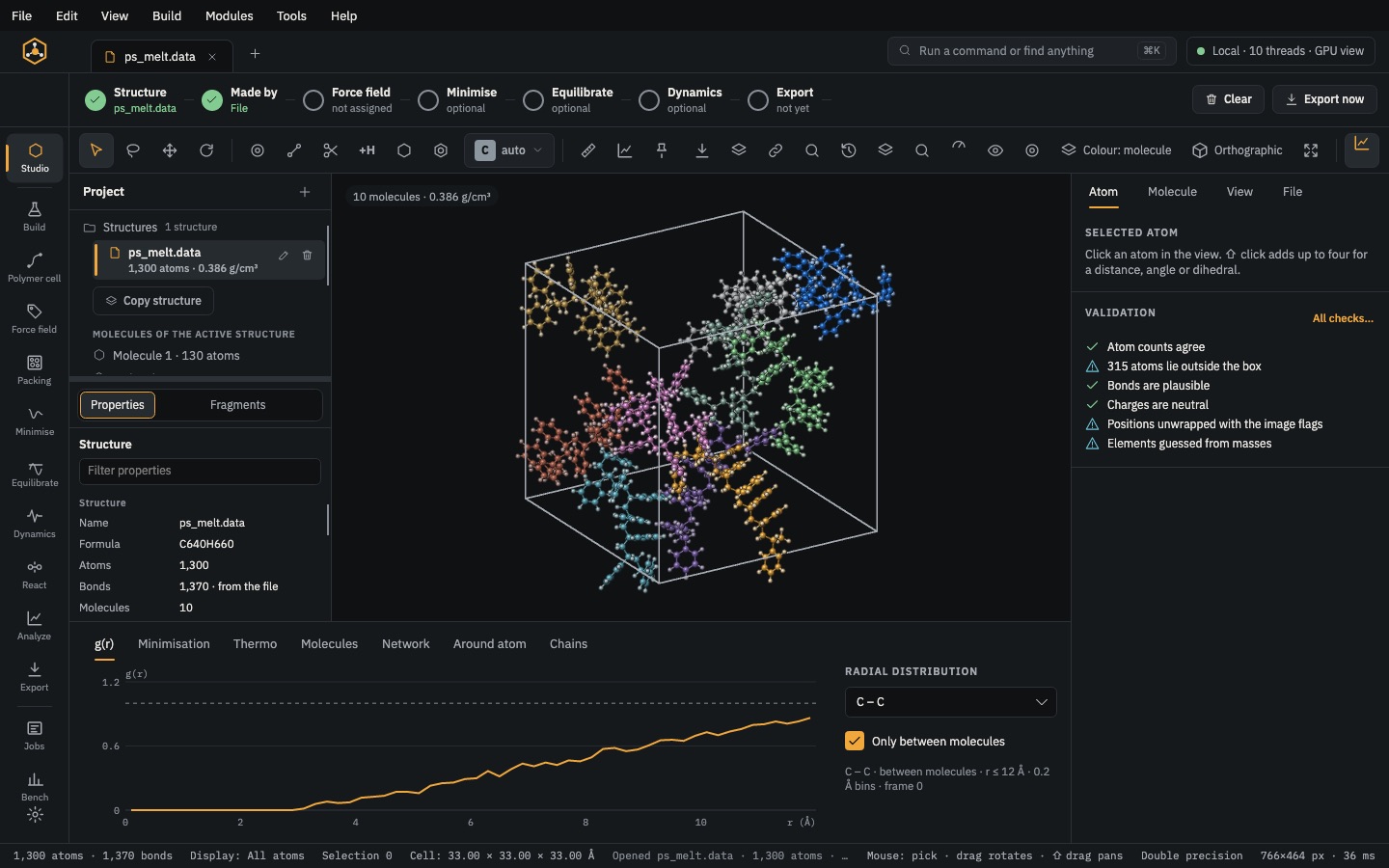 Get startedStudioThe 3D view, project tree, inspector and quick analysis; the pipeline strip shows how far a structure has got.
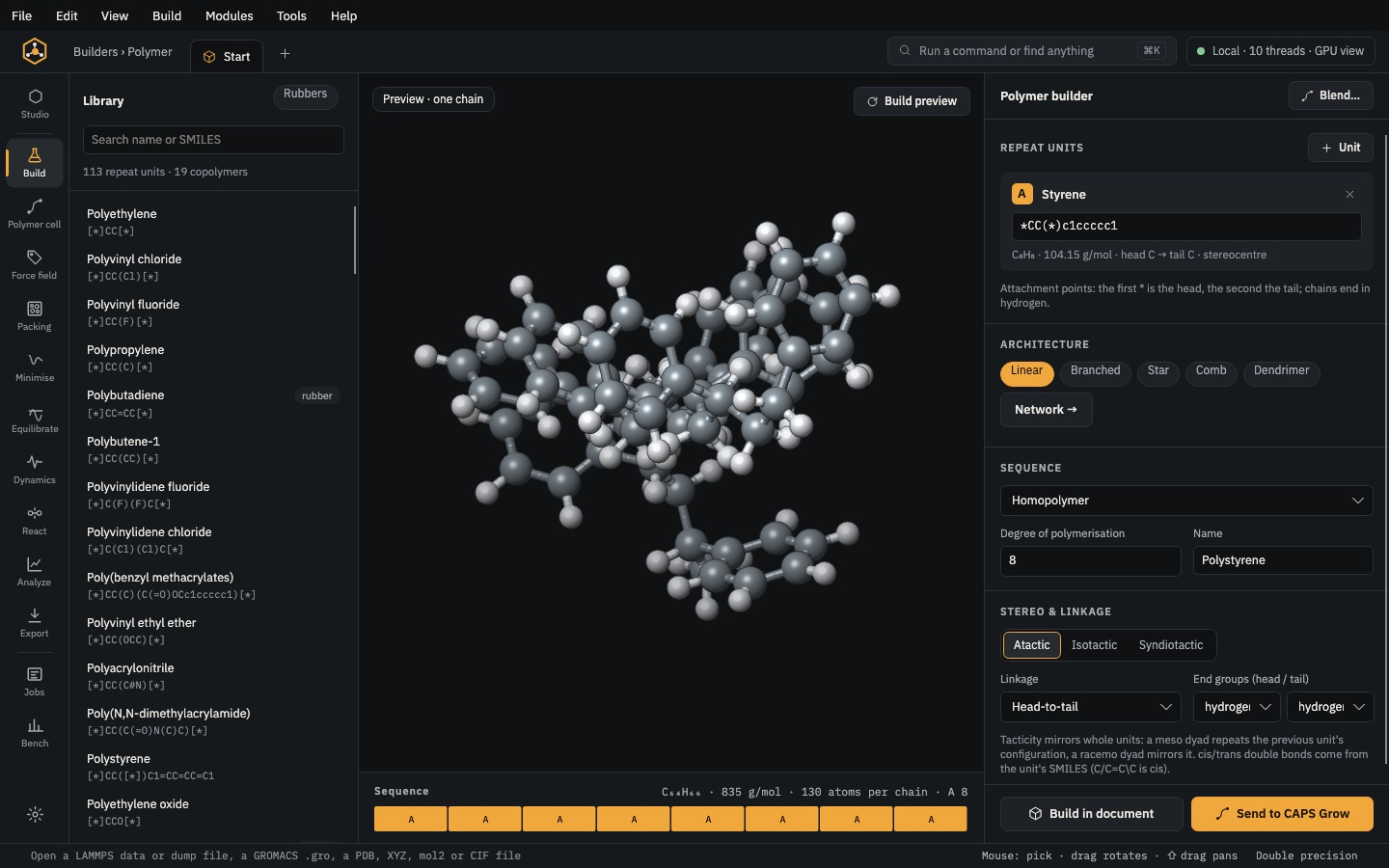 BuildPolymer builder114 repeat units and 21 copolymers, or your own SMILES; architecture, sequence, composition, tacticity and end groups.
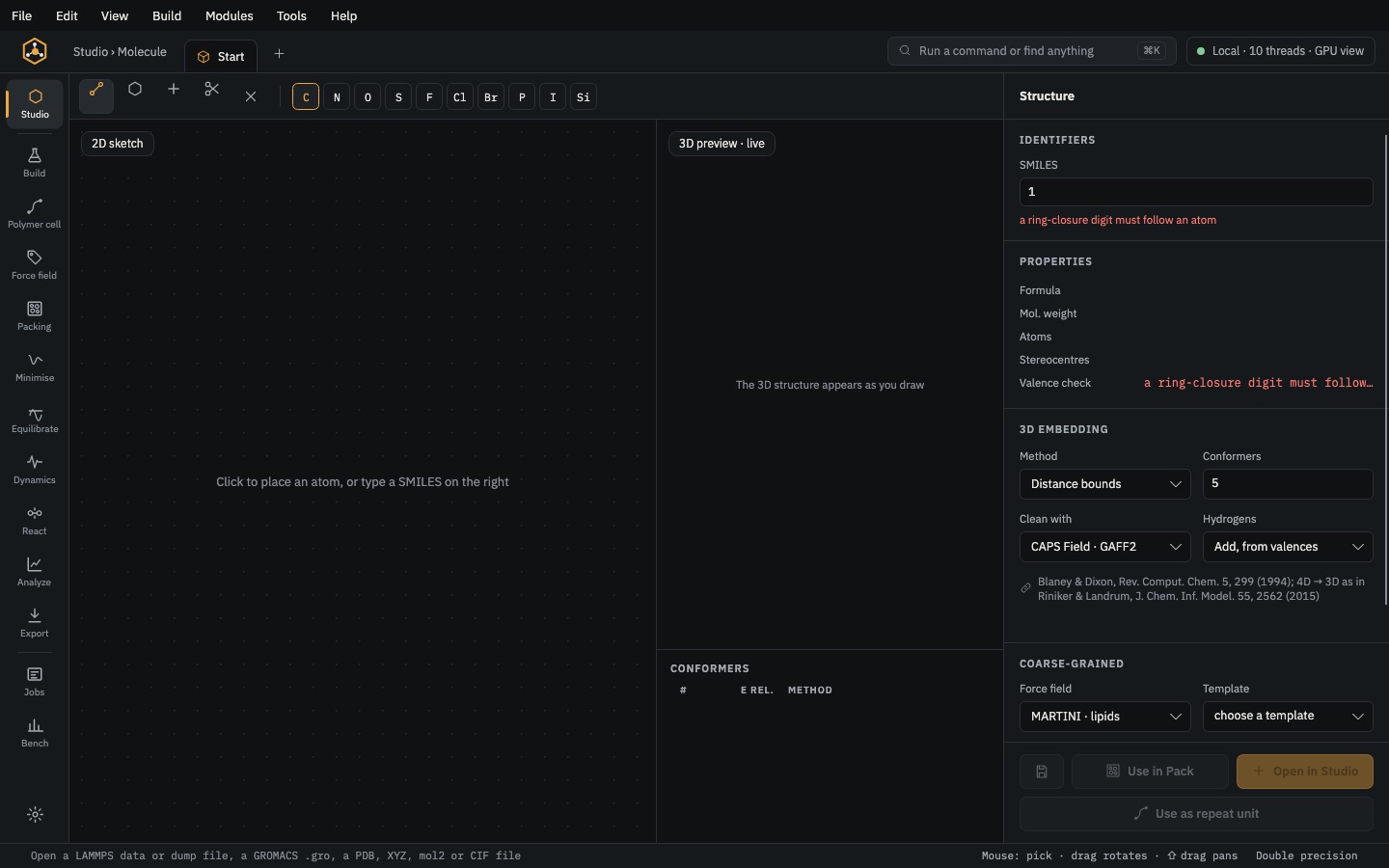 BuildMolecule builderDraw or type a SMILES and get 3D conformers: monomers, curatives, solvents and additives.